UXCam's MCP
UXCam is a leading mobile app experience analytics platform that helps product teams understand user behavior through session recordings, heat maps, and funnel analytics.

The problem
UXCam's whole value proposition depends on one thing happening correctly first: a developer has to install our SDK into their app, correctly, before we can show them anything useful.
That first step was still the weakest part of the experience. New teams got a quick-start doc, and a developer had to read it and manually translate it into code: add a dependency, initialize the SDK in the right place, tag screens, mask sensitive fields, wire up event tracking. Every one of those is a place to get something subtly wrong or incomplete, such as personal data showing up in a recording that should have been masked, or events not instrumented with meaningful properties.
The approach
We built an MCP server that acts as a bridge, letting an AI coding assistant (in Cursor, Claude, Windsurf and others) work directly inside a developer's own editor. Rather than reading documentation and copy-pasting code, the developer has a conversation with their assistant, and the assistant does the setup work in their project.
We didn't make it a general-purpose "do anything" agent. We scoped it to five specific, guided tasks that set up UXCam from start to finish:
| Step | Purpose |
|---|---|
| Integration setup | Adds the UXCam SDK dependency and initializes it |
| Screen tagging | Wires up automatic or manual screen tagging (naming of app screens) |
| Sensitive data masking | Occludes passwords, payment fields, and other PII from session replays |
| Event tracking | Adds custom event logging for key user and business actions |
| User properties | Sets user identity and custom attributes for segmentation |
Platforms covered: Android, iOS, Flutter, React Native. Supported clients: Cursor, Windsurf, Claude Desktop, Claude CLI.
It works the same way across the four major mobile stacks, so a team doesn't get a different experience depending on what they built their app in.
The high-level flow
The path from sign-up to a working integration is three steps, and each hands off cleanly to the next rather than requiring the developer to piece the process together themselves:
- Arrive at the integration page. Immediately after sign-up, the developer lands on a dedicated integration page inside the UXCam platform.
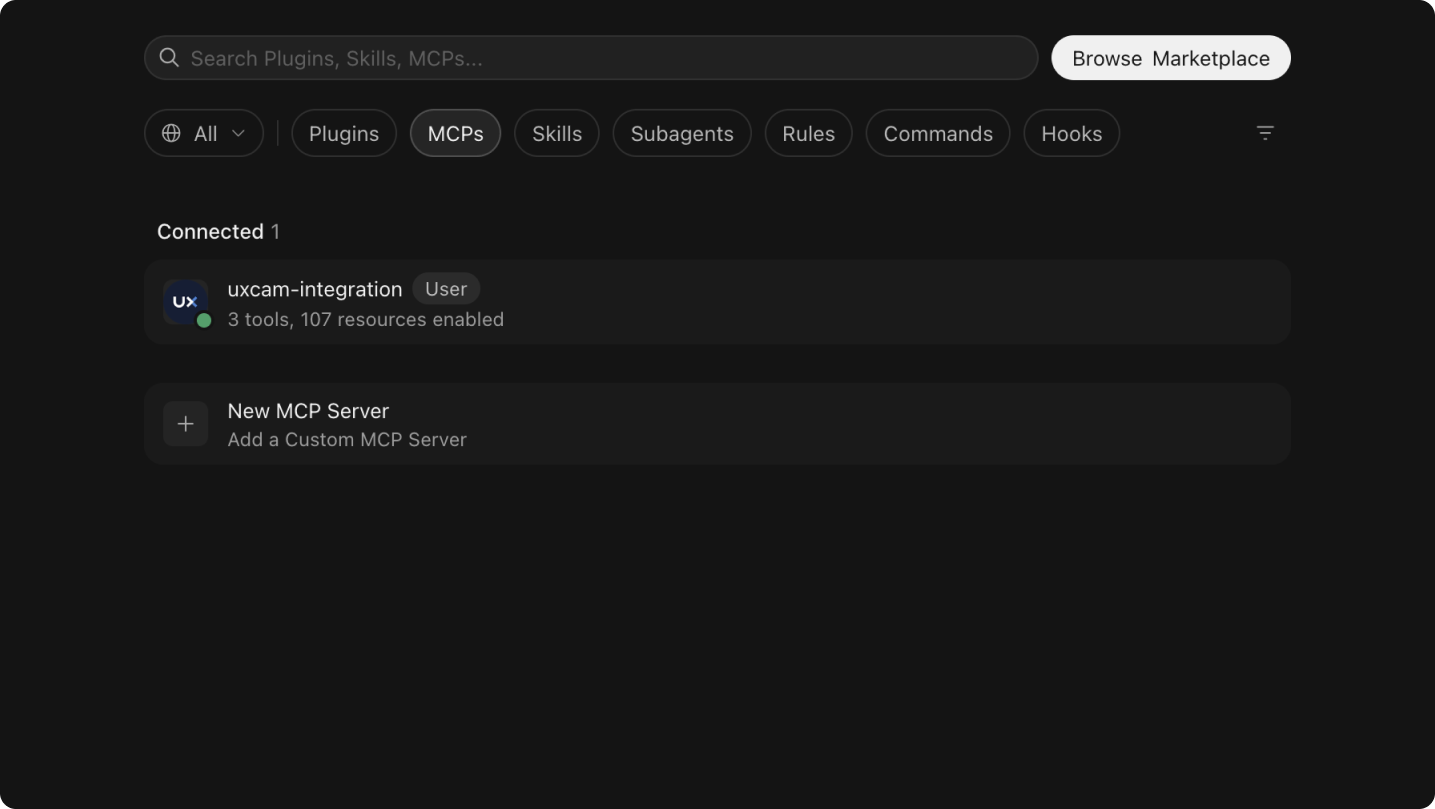
- Connect the MCP server to their chosen LLM. From their IDE, the developer adds the UXCam MCP server as a connector. It is a one-time setup step regardless of which model or editor they prefer.
- Kick off the integration flow. The developer copies the UXCam App Key from the integration page and passes it as an argument when invoking the /uxcam-integration command in their AI assistant. That command starts the guided flow through the five setup steps.
{
  "mcpServers": {
    "uxcam-integration": {
      "type": "streamable-http",
      "url": "https://integration.mcp.uxcam.com/mcp/http",
      "headers": {
        "Accept": "application/json, text/event-stream",
        "Content-Type": "application/json"
      }
    }
  }
}
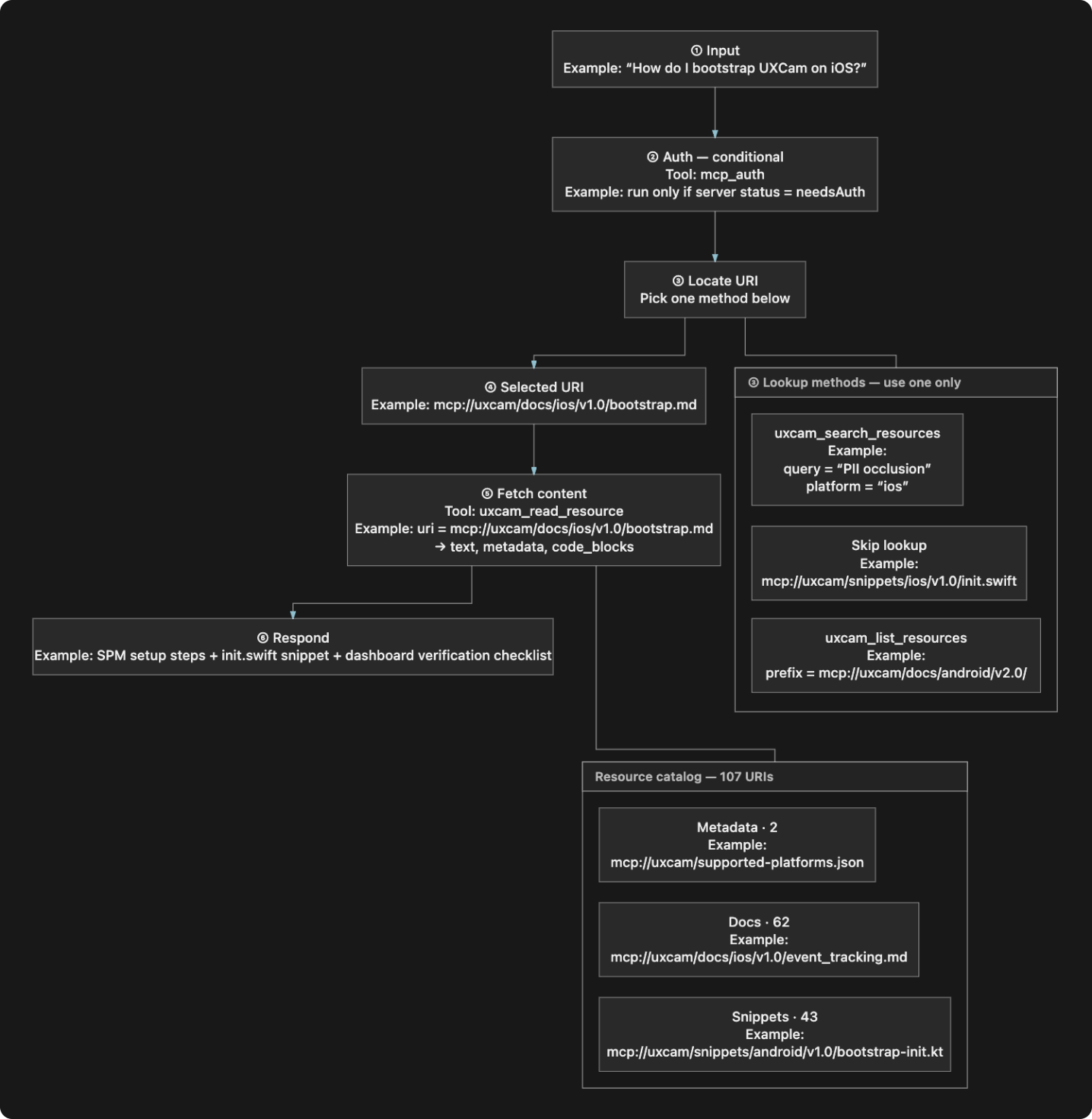
Walking through the five prompts
Each of the five guided tasks is a self-contained prompt the developer invokes once the integration flow has started. Here is what each is responsible for, and the nuances that made each worth designing deliberately rather than leaving to the assistant's judgment.
- 1. Integration setup. Adds the SDK to the app and initializes it as early as possible in the app's lifecycle, the point every other task depends on. Initializing too late means the SDK misses early user activity, and initializing from a place that doesn't persist for the app's full lifetime can mean it never reliably starts. The assistant places this call once, at launch, in whichever file is appropriate for the platform. When the step completes, the assistant summarizes what it did and checks with the developer before moving on. None of the other four tasks can run until this one has completed; trying to jump ahead returns an error instead of executing against an SDK that was never started.
- 2. Screen tagging. UXCam tags most screens automatically, but the automatic label defaults to the underlying class or component name, which is rarely how a product team thinks about a screen. This task assigns meaningful, human-readable names so screens appear correctly in funnels and heat maps: "Checkout", not the name of the code file that renders it.
- 3. Sensitive data masking. The highest-stakes task in the workflow, and the one we scrutinize hardest before trusting any output unreviewed. UXCam can blur an entire screen, mask every text field on a screen, or mask one field individually. Standard fields such as password fields are masked automatically with no setup. This task exists for everything else: a custom-built credit card field, a government ID field, or any custom-rendered input the SDK can't recognize as sensitive. The assistant can only mask what it is told to mask, which is why this step remains a required manual audit rather than a completed checkbox.
- 4. Event tracking. Adds logging for the actions a team cares about (signups, purchases, any moment that matters to a funnel or drop-off analysis) along with a small set of descriptive properties for each event. Two details are easy to get subtly wrong by hand, which is why we wanted an assistant enforcing consistency: event names are case-sensitive, so "Payment Succeeded" and "payment succeeded" would log as two separate events, and there is a cap on properties per event, so the assistant has to select the ones that matter.
- 5. User properties. Attaches identity and attributes to a user once the user is actually known, after login rather than at cold start. These make later segmentation possible, and setting a property overwrites its previous value rather than accumulating it. This is also where we were most careful about scope: UXCam's guidance is explicit that this field should not carry personal information unless a data processing agreement is in place, and the assistant is scoped to respect that boundary rather than infer around it.
Evaluation
Because the assistant writes directly into a developer's project, we did not treat "it produced code" as sufficient evidence that the integration was correct. We validated the workflow against three demo applications spanning distinct industries, run through the primary LLM back-ends developers actually use with the assistant: Claude, ChatGPT, and Cursor's automatic model selection.
For every app, platform and model combination, we verified the workflow at three levels:
- Resource resolution. Confirming the assistant located and fetched the correct documentation or code resource for the task, rather than guessing or substituting a similar one.
- Tool-calling sequence. Confirming the assistant invoked the right tools in the right order for each of the five tasks, rather than skipping a step or calling them out of sequence.
- Manual verification in the UXCam platform. After the assistant reported a task complete, we checked the result in the dashboard rather than taking the generated code at face value: main screens tagged correctly, PII fields actually occluded in session recordings, custom events created and firing, and the right user properties assigned to the right users.
We also ran the prompts themselves through A/B testing, evaluating multiple phrasings of each of the five tasks across every platform, model and app combination, and kept the versions that produced the most consistent, correct output. The five prompts in production are the result of that process, not a first draft.
Key decisions
- Five fixed steps rather than an open-ended assistant. It would have been technically possible to let the assistant do "whatever the developer asks" against our SDK. An assistant with unconstrained scope is also one whose output is difficult to predict or verify. By constraining it to five known tasks, we traded flexibility for reliability.
- The one prerequisite is enforced, not just recommended. We chose not to rely on developers, or the assistant, simply knowing to run Integration Setup first. Attempting any other task beforehand returns an error. After every step, including the first, the assistant summarizes what it did and confirms with the developer before advancing, so nothing proceeds silently on an assumption.
- The account credential is not stored in the connection itself. The one genuinely sensitive input, the app's private key, is not embedded in how the assistant connects to our server. It is supplied in conversation and written into the developer's own code, where any credential of this kind normally lives: an environment variable, not a hardcoded value. This keeps the credential under the developer's existing security practices rather than introducing a new place for it to leak.
- Where automation stops and human review begins. Four of the five steps carry low stakes if executed imperfectly: a mislabeled screen produces noisy data, nothing more. Sensitive data masking is different, because getting it wrong means real personal information can end up in a recording. The SDK already masks common cases automatically, such as standard password and credit card number fields, but it is not trusted to catch everything. Any custom-rendered input, such as a bespoke PIN entry or a government ID field, still requires a person to confirm masking is applied. The tool is designed to flag that step for review rather than assume it handled personal data correctly.
Other considerations
Scoping the tool tightly resolved the trust problem for most of the workflow, but several risks remain a matter of ongoing product ownership rather than something the assistant can manage:
- Masking coverage is a compliance question, not a style preference. Masking all standard text fields is a sound default, but it does not extend to custom-built components automatically. A team still needs to review each screen that can render personal data and confirm masking is in effect, not merely that the setup step was run.
- Event naming requires ownership. Left unmanaged, an assistant will name events however seems reasonable in the moment. Without a naming convention, teams end up with data that is technically instrumented but practically unusable within months: "Payment_Succeeded" and "payment_succeeded" register as two distinct events.
- Automatic and manual screen tagging can overlap. If a team isn't aware which screens are already picked up automatically, duplicate tagging can occur. A short dashboard review after rollout, checking for duplicate or zero-duration screen entries, typically surfaces this.
- This remains a beta capability. Output from the assistant is treated as a strong first draft subject to review, as with any code touching user data collection, not something that ships because it ran without errors.
Why this matters
This is a small but concrete data point in a larger shift: companies are starting to treat "integrate our product" as an agent-operable workflow rather than a page of docs. That's a good trade when the vendor scopes the agent tightly (five well-defined prompts, not a general-purpose tool) and when the generated code stays inspectable and ordinary. Nothing here is code-generation magic; it's the same public SDK calls a developer would write by hand, sequenced and typed out by an agent instead of copy-pasted from a docs page.
The interesting skill isn't "can the agent write the code"; it can. It's knowing which parts of that output, such as privacy-sensitive occlusion coverage, still need a human sign-off before it ships.
Final thoughts
- Deliberate scoping of an AI-agent feature: a small, trustworthy set of tasks over open-ended flexibility, because predictability carried more value at this stage than breadth.
- Privacy and compliance as first-class product requirements, including judgment about precisely where automation should stop and human review should be required.
- Cross-platform product thinking: one consistent experience across four distinct mobile stacks, without requiring deep expertise in any single one.
- Critical evaluation of AI-generated output: distinguishing what a tool can be trusted to do by default from what still requires explicit human review before it touches real users' data.